



By default, Chromium-based browsers, such as Google Chrome, include an integrated PDF viewer that allows you to access PDF files right within the browser. However, if you want to use another PDF program, you may turn off this capability:
For most Chromium-based browsers:
- Open Browser Settings:
- Double-click the Chrome icon to open the browser.
- Click on the three vertical dots (menu icon) in the upper right corner of your screen.
- Select "Settings" from the drop-down menu.
- Navigate to Privacy and Security:
- In the Settings menu, click on "Privacy and security" from the left-hand side menu.
- Access Site Settings:
- Scroll down and click on "Site Settings."
- Modify PDF Documents Settings:
- In the Site Settings, scroll down and click on "PDF Documents." (May need to click on "Additional content settings" to show)
- You will see two options:
- Download PDFs
- Open PDFs in Chrome
- Disable Chrome PDF Viewer:
- Checkmark the "Download PDFs" option. This will disable the Chrome PDF Viewer, prompting your browser to download PDFs instead of opening them directly in the browser.
OR Open PDF Documents Settings Directly: Copy the URL chrome://settings/content/pdfDocuments. Paste it into the Chrome URL bar and press Enter.

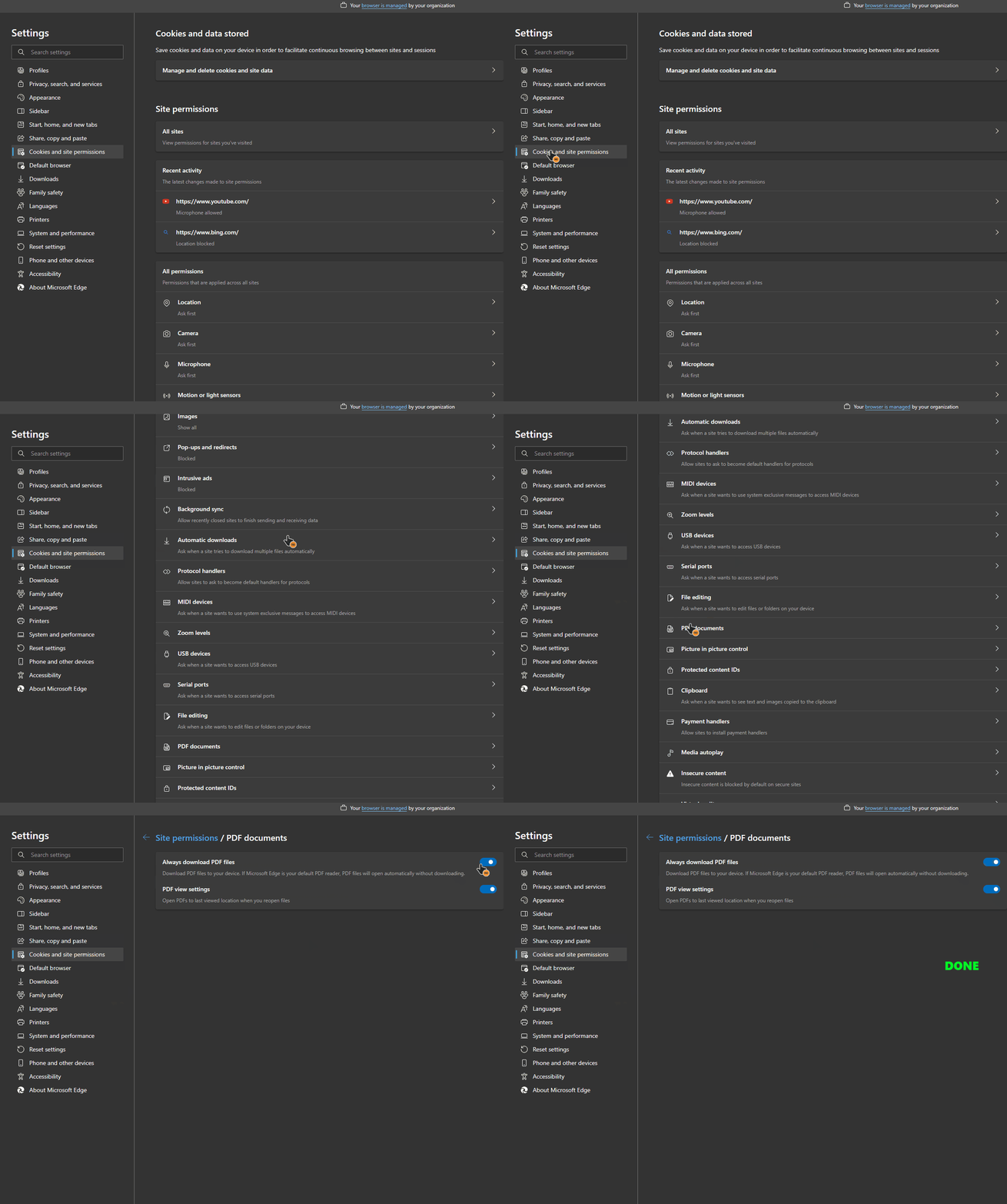
In Microsoft Edge, "Cookies and site permissions" on the left sidebar and click on it, Scroll down and find the "PDF documents" option under the "All permissions" section. Click on "PDF documents." Turn on the switch next to "Always download PDFs." This will ensure that PDF files are downloaded to your device instead of being opened directly in the Edge browser.
For most Firefox-based browsers:
Method 1: Use Firefox General Settings (Recommended)
- Open Firefox Settings:
- Open your Firefox browser.
- Click on the three horizontal lines (menu icon) in the upper right corner of the screen.
- Select "Settings" from the drop-down menu.
- Navigate to Applications:
- In the left-hand menu, click on "General."
- Scroll down to the "Applications" section.
- Modify PDF Settings (Flexible):
- Look for the "Portable Document Format (PDF)" entry in the list.
- Click on the drop-down menu next to it and select your preferred PDF application (e.g., "Always ask," Save File, or the name of an installed PDF reader)
Method 2: Use Firefox Configuration Settings
- Access Firefox Configuration:
- Type
about:configin the address bar and press Enter. - You may see a warning message about changing advanced settings. Click "Accept the Risk and Continue" to proceed.
- Type
- Search for PDF Viewer Setting:
- In the search bar, paste
pdfjs.disabled.
- In the search bar, paste
- Disable the Built-In PDF Viewer:
- In the search results, you will see
pdfjs.disabled. It will be set tofalseby default. - Double-click on
pdfjs.disabledto set its value totrue.
- In the search results, you will see
- Restart Firefox:
- For the changes to take effect, you may need to restart Firefox.

Comments NOTHING