



If you're running an older application or scanner, that does not support long passwords, it also may lack support for modern security protocols like TLS, etc. Creating a challenge for securely sending scanned documents or automated emails. Or simply doesn't want the old application or the scanner to use your real credentials for loging in. Fortunately, hMailServer provides a versatile solution by acting as an intermediary SMTP relay, allowing these devices to send emails through an external email account. In this guide, we'll walk you through configuring hMailServer to achieve this.
Prerequisites
Before you begin, ensure you have the following:
- A Windows server/desktop is capable of hMailServer installed and running.
- Window computers require firewall software to open the SMTP ports.
- Windows host system has a valid connection to the internet or at least can connect to the mail server domain externally (external email account only).
- Credentials for an external email account (e.g., Gmail, Outlook, or your own).
- Network information access for your printer or application.
Step 1: Install and Set Up hMailServer
- Visit the hMailServer website (GitHub) and download the latest version.
- Run the installer and follow the on-screen instructions to complete the installation.
- Select the built-in database engine that is suitable for this purpose.
- Set the administrator password/main password.


If you see the above screen you may also need to download Microsoft .NET Framework 2.0 Service Pack 1
Step 2: Configure SMTP Relay
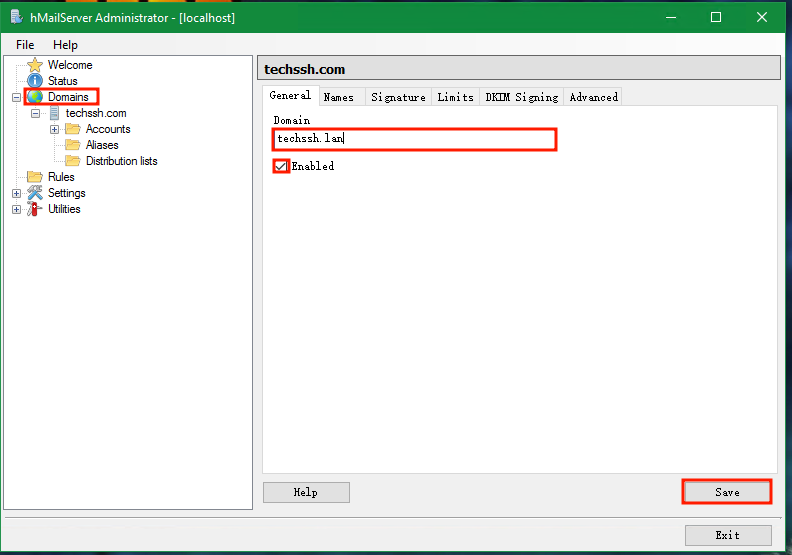
1. Add a New Domain:
- In the hMailServer Administrator, navigate to
Domains. - Click
Add...to create a new domain, If this is intended for local use, please use it local domain that does not conflict with the SMTP external sender domain ('delivery of e-mail' settings later). - If the domain here is configured as the same as the external account, later user account creation also will be associated with the domain. It will send the email to the same domain name that is configured on the local machine, if you start sending emails from the old application or scanner, it will just use the local account to send it, and cannot be sent out via an external account. (Unless the SMTP routes account is configured)
- Enter your domain name and enable and save it, as hMailServer requires a domain to operate.
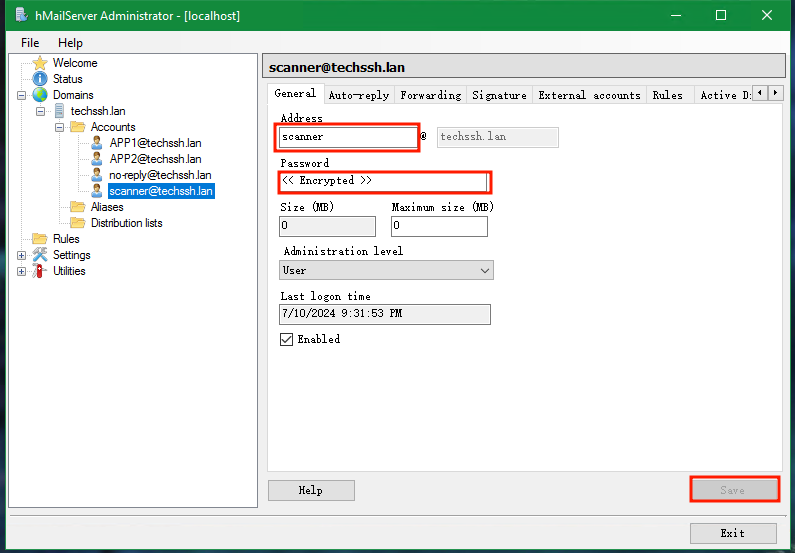
2. Add an Email Account:
- Under the domain created earlier, navigate to
Accounts. - Click
Add...to create a new email account. - Enter the desired email address and password.
- Click
Save.
3. Configure SMTP Relay:
hMailServer sent: RCPT TO:
Remote server replied: 553 5.7.1
Unless the SMTP routes account is configured properly
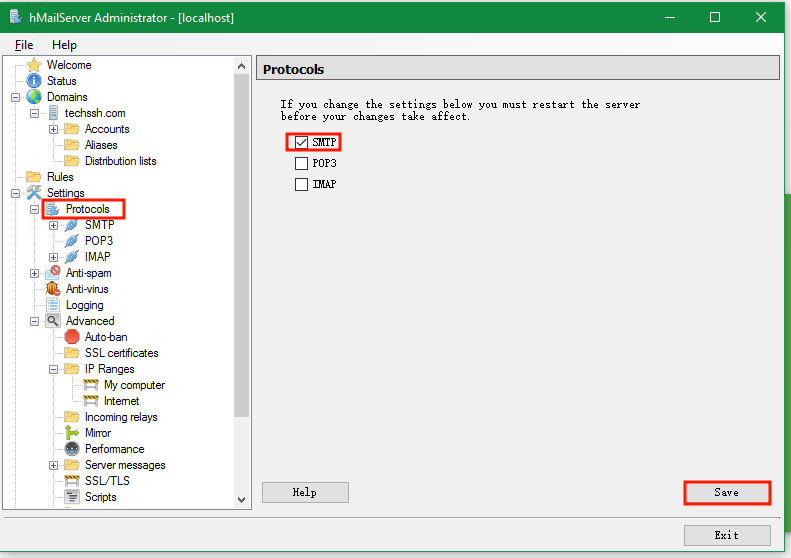
For this demonstration, I will only be using it for sending emails, so I only use SMTP protocols:
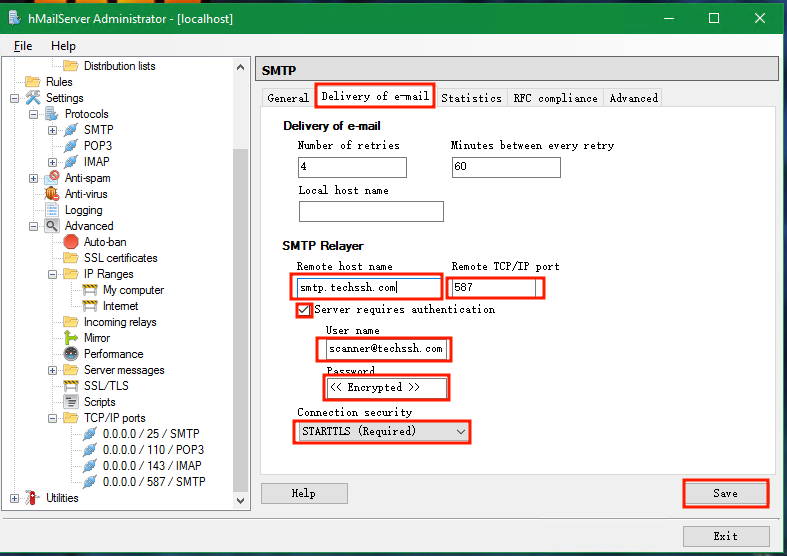
- Go to
Settings > Protocols > SMTP > delivery of e-mail. - Set the
remote host nameto the external email domain or your domain email server. - Set the
Remote TCP/IP portto the SMTP port used by the external email provider or your email server (typically 587 for TLS or 465 for SSL). - Enable the
Server requires authenticationcheckbox and enter the credentials for the external email account. - Select the
Connection securityand clickSave.
4. Optional - Additional SMTP Routes Account Configuration:
If you want a particular domain to relay an SMTP external account, that can be done under SMTP protocol:

Allow to route email on the entire domain or just a particular list of addresses:
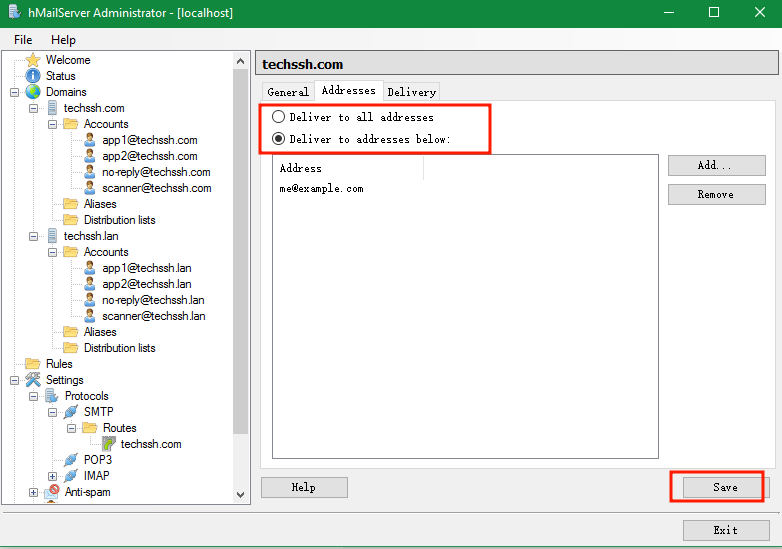
Email account credential:
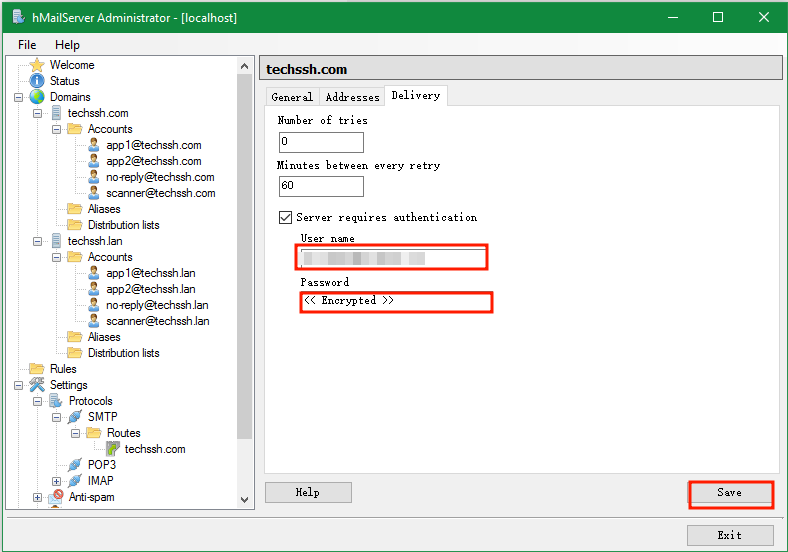
5. Configure the Email Account on the Scanner or an Old Application:
Input the following email information into the scanner or all applications:
| Device or Application setting | Value |
|---|---|
| Server/smart host | [Your hMailServer IP or domain] |
| Port | Port 587 or Port 25 |
| TLS/StartTLS | none |
| Username/email address and password | Enter the sign-in credentials you created in Step 2 |
Open SMTP ports on the Windows Firewall
We can do that through PowerShell, to allow ports 25 and 587 for all hosts in Windows Firewall using PowerShell:
### Allow inbound traffic on ports 25 and 587 ###
New-NetFirewallRule -DisplayName "Allow SMTP Port 25 Inbound" -Direction Inbound -LocalPort 25 -Protocol TCP -Action Allow
New-NetFirewallRule -DisplayName "Allow SMTP Port 587 Inbound" -Direction Inbound -LocalPort 587 -Protocol TCP -Action Allow
# Also include ports 143 (IMAP) and 993 (IMAP over SSL/TLS) port if needed
New-NetFirewallRule -DisplayName "Allow IMAP Port 143 Inbound" -Direction Inbound -LocalPort 143 -Protocol TCP -Action Allow
New-NetFirewallRule -DisplayName "Allow IMAP SSL Port 993 Inbound" -Direction Inbound -LocalPort 993 -Protocol TCP -Action Allow

### Allow outbound traffic on ports 25 and 587 ###
New-NetFirewallRule -DisplayName "Allow SMTP Port 25 Outbound" -Direction Outbound -LocalPort 25 -Protocol TCP -Action Allow
New-NetFirewallRule -DisplayName "Allow SMTP Port 587 Outbound" -Direction Outbound -LocalPort 587 -Protocol TCP -Action Allow
# Also include ports 143 (IMAP) and 993 (IMAP over SSL/TLS) port if needed
New-NetFirewallRule -DisplayName "Allow IMAP Port 143 Outbound" -Direction Outbound -LocalPort 143 -Protocol TCP -Action Allow
New-NetFirewallRule -DisplayName "Allow IMAP SSL Port 993 Outbound" -Direction Outbound -LocalPort 993 -Protocol TCP -Action Allow

Troubleshooting
When testing the email address or configuring the application, if you configure it incorrectly, you will most likely hit the auto-ban limit; for this, turn the auto-ban off or alter the setting.
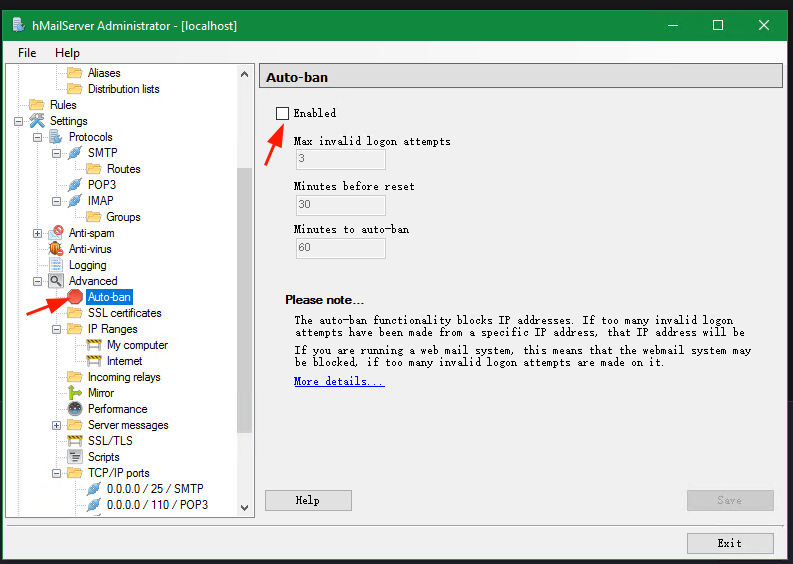
If you did hit any limit it will listed in IP Ranges and highlighted in red.

What are my thoughts on using it?
Although I only use it for that old application to send email. hMailServer is just as capable of sending an email as other email servers, it can do many other functions as well, if you're interested please check out their documentation, such as something I did not mention or do is generating a self-signed certificate using OpenSSL and starting using encrypted communication traffic (if supported). See the following example command if you're interested:
openssl.exe genrsa -out Your-FQDN.key 2048

openssl.exe req -new -nodes -key Your-FQDN.key -out Your-FQDN.csr

openssl.exe x509 -req -days 3650 -in Your-FQDN.csr -signkey Your-FQDN.key -out Your-FQDN.cert
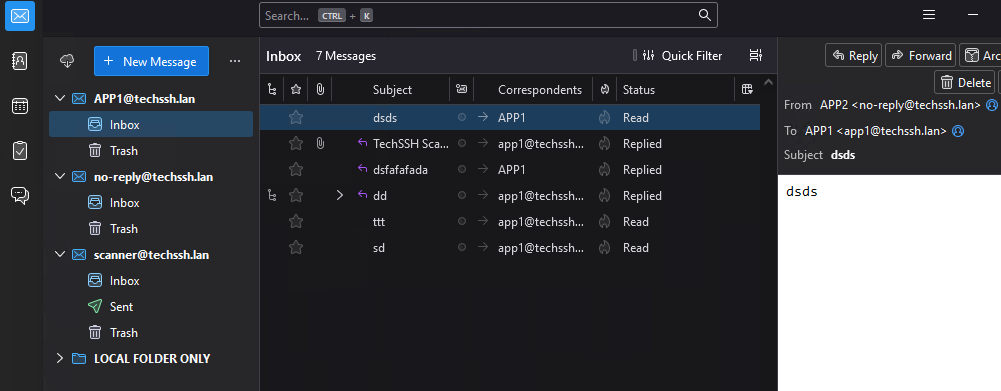
Another approach to utilize this hMailServer is simply to use it locally to send emails to each other, with the help of Thunderbird, to send bulk messages or documents without issues.
Related
Here are some other solutions that you may consider:
Invalid GitHub repository path: /simonrob/email-oauth2-proxy
Comments NOTHING