



Introduction
Ever wondered why you'd want to hide a user account from the Windows login screen? Well, think about admin tasks. Sometimes, you need a service account for system management, but showing it on the login screen just confuses regular users.
In this guide, we'll cut through the jargon and show you how to hide user accounts on Windows 10/11. It's all about streamlining admin tasks while keeping the user experience seamless.
Using the registry method to hide specific account
Command line method
Open the PowerShell program follow the description and run the following command as administrator:
# Step 1: Navigate to the specified key
Set-Location "HKLM:\SOFTWARE\Microsoft\Windows NT\CurrentVersion\Winlogon"

# Step 2: Create a new key named SpecialAccounts
New-Item -Name SpecialAccounts -ItemType Key

# Step 3: Create a new key named UserList under SpecialAccounts
New-Item -Path .\SpecialAccounts -Name UserList -ItemType Key

# Step 4: Create a new DWORD value for hiding the account such as "Administrator" account,value 0 is hide account,value 1 is unhide the account
New-ItemProperty -Path .\SpecialAccounts\UserList -Name "Administrator" -Value 0 -PropertyType DWORD

#####Alternatively, you can do it all in one command:####
reg add "HKLM\SOFTWARE\Microsoft\Windows NT\CurrentVersion\Winlogon\SpecialAccounts\UserList" /t REG_DWORD /f /d 0 /v Administrator

# Step 5: Restart the computer to apply the changes
Restart-Computer -Force
GUI method
You can also do the same step by opening the GUI of the registry:
Open the Registry Editor: Start-Process regedit -Wait and navigate to the following and make the necessary changes as shown in the example picture:
HKEY_LOCAL_MACHINE\SOFTWARE\Microsoft\Windows NT\CurrentVersion\Winlogon
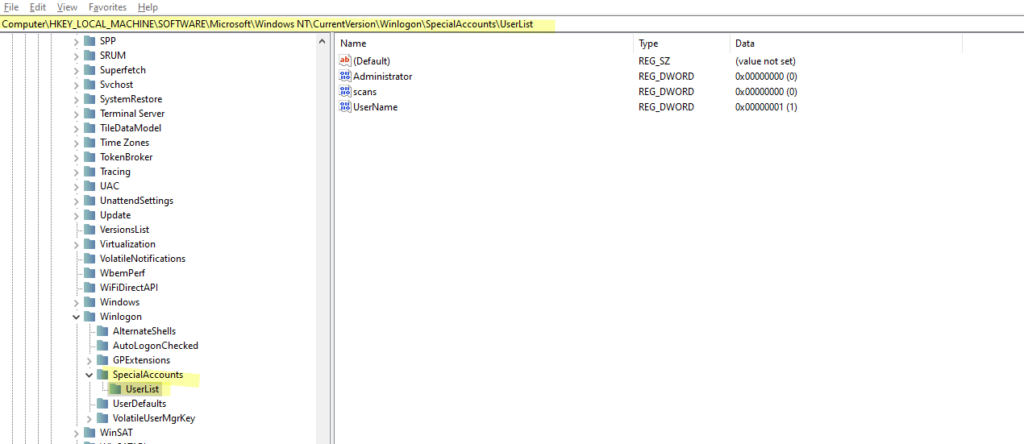
Make the necessary changes and set the value to 1 to hide it. Close Registry Editor: Stop-Process -Name regedit and reboot the PC as needed as well, the account you specified to hide will not show up on the login screen anymore. Keep in mind those accounts are still active they just do not show up on the login screen anymore, you can always log into them through a remote desktop or other services (except the actual disabled user accounts).
Hide all user accounts from the Windows login screen
If you don't want to hide a specific user account but want to hide all user accounts from the login screen. This will hide all user accounts from the login screen in Windows 10/11, forcing users to enter their username and password manually. There are two ways to accomplish the following task:
Windows Registry editing
Launch PowerShell or CMD as administrator:
For option: Interactive logon: Don’t display last signed-in:
reg add "HKLM\SOFTWARE\Microsoft\Windows\CurrentVersion\Policies\System" /v "dontdisplaylastusername" /t REG_DWORD /d 1 /fFor option: Interactive logon: Display user information when the session is locked
reg add "HKLM\SOFTWARE\Microsoft\Windows\CurrentVersion\Policies\System" /v "DontDisplayLockedUserId" /t REG_DWORD /d 3 /f
Windows Windows Group Policy editing (Preferred Method)
Open the local Group Policy editor (gpedit.msc) or the domain Group Policy Management Console (gpmc.msc) and go to Computer Configuration -> Windows Settings -> Security Settings -> Local Policies -> Security Options; find the Interactive logon: Don’t display last signed-in and enable it:
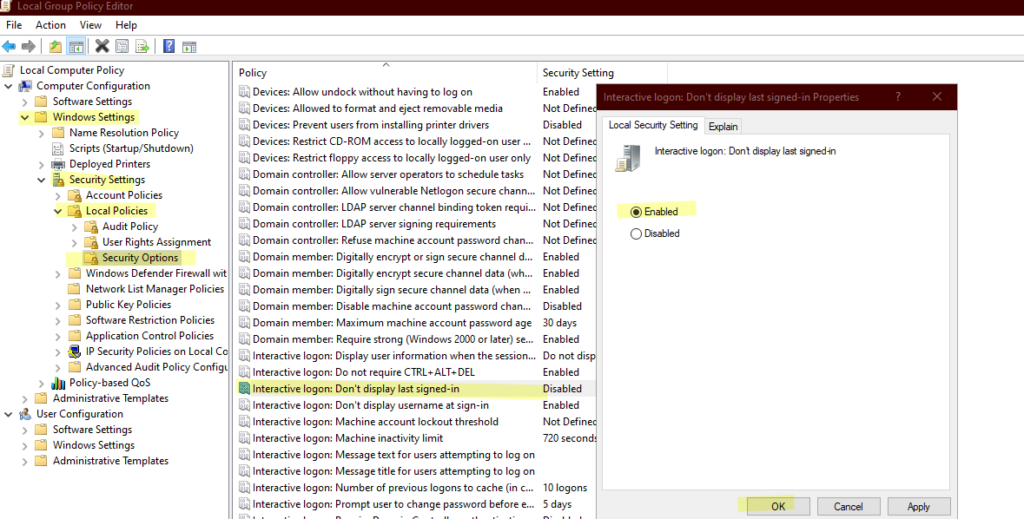
In the same location fine: “Interactive logon: Display user information when the session is locked" and set it to “Do not display user information”
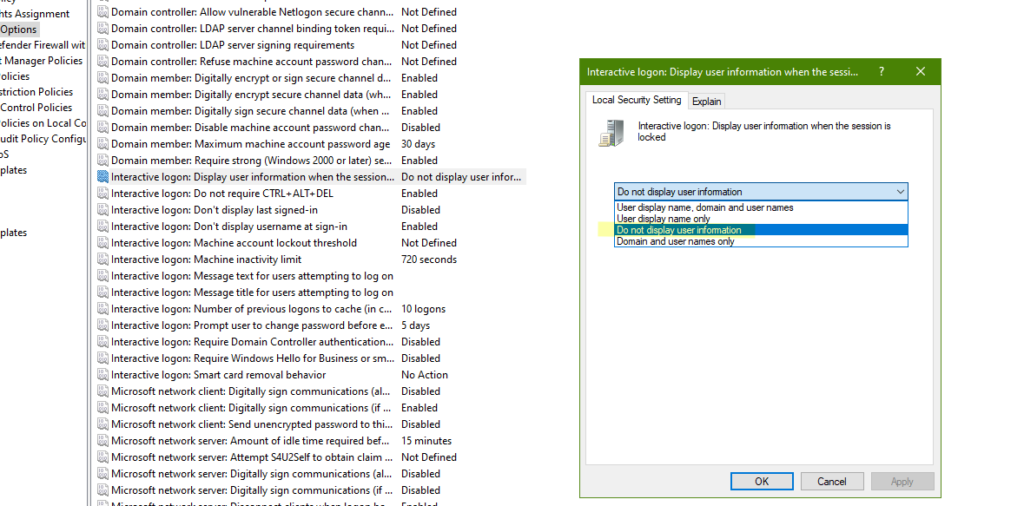
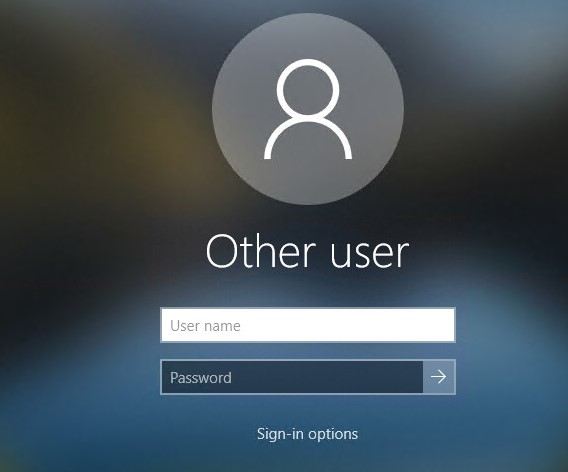
After you have finished the configuration, reboot Windows to take effect, as you indicated in the following picture, no username will be shown.
Other options
If interested, following a few more options that can be tweaked:
Other user accounts will display after hitting the "switch user" button on the Windows lock screen: (Registry)
reg add "HKLM\SOFTWARE\Microsoft\Windows NT\CurrentVersion\Winlogon" /t REG_DWORD /f /d 0 /v DisableBackButtonTo hide all users except the last login user was used: (Group Policy)
GPO settings are under Computer Configuration -> Administrative Templates -> System -> Logon:
Enumerate local users on domain-joined computers = Disabled
Do not enumerate connected users on domain-joined computer = Enabled
Display Logged-In User account on Windows Logon Screen: (Group Policy)
This is for the domain user, in particular, for those people who share the same computer and have an active session account or for multiple RDP connections.
The following Group Policies needed to be disabled:
GPO Location1: Computer Configuration -> Windows Settings -> Security Settings -> Local Policies -> Security Options:
- Interactive logon: Don’t display last signed-in: Disabled
- Interactive logon: Don’t display username at sign-in: Disabled
GPO Location 2: Computer Configuration -> Administrative Templates -> System -> Logon:
- Block user from showing account details on sign-in: Disabled
- Do not enumerate connected users on domain-joined computer: Disabled
Conclusion
When we want to hide a PC's account, most of the time we are doing this to the local PC, but as you can see some of the methods described above are also applied to the domain user. Furthermore, most of the settings can be done by group policy, however, if you don't have a Windows 10/11 professional version, it can be used in the registry method for the home version of Windows.
Comments NOTHING