



Introduction
Are you a Nintendo Switch user who enjoys online multiplayer experience? If this is the case, you may have faced an annoying problem when attempting to connect to other consoles or play online games—specifically, the error code 2618-0516. This issue usually signals a problem with your pfSense router's Network Address Translation (NAT) settings, which makes it difficult to establish consistent connections with other players.
The pfSense router, which is well-known for its comprehensive network management abilities, has innovative features that can improve your gaming experience. Certain router NAT setups, however, may pose compatibility difficulties with the Nintendo Switch's online capability. Fortunately, there are ways available to fix this issue and restore your Nintendo gaming client's ideal communication. Normally, if you use a consumer-grade router, it will not be a problem because it will be using UPnP (Universal Plug and Play) service and many other NAT features that are already available to it. However, if you are using custom pfSense as your gateway, let's get into how to fix it.
Configuring a static IP address
Configuring a static IP address for your Nintendo Switch in pfSense is an essential step in resolving the NAT-type problem. By assigning a static IP, you ensure that the console always uses the same IP address.
In the pfSense administrator web interface: Browse to Services > DHCP Server > LAN and then scroll down to "DHCP Static Mappings for this Interface" and click Add.
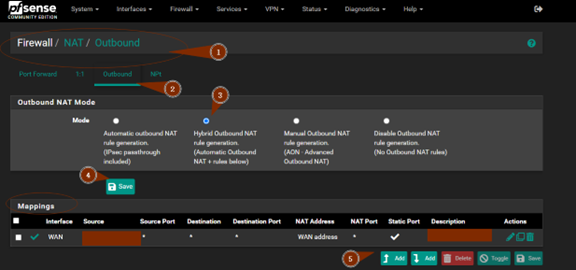
You need to then select 'Hybrid Outbound NAT' and click Save and then Apply the changes.
The Mapping section just underneath should now become available and you can click the Green 'Add' button to set up your Static Port rule.
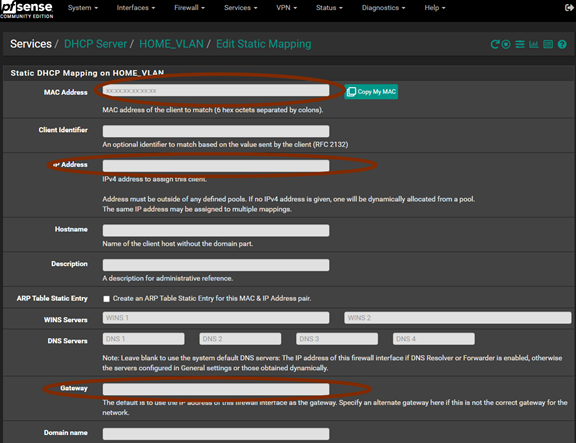
In the picture, you can enter the Nintendo Switch MAC address box required by the pfSense field and make sure a non-DHCP IP address is entered for your Nintendo Switch.
Configuring a Static Port
By adding a static port in the NAT Firewall section of pfSense, you are ensuring that the necessary ports for Nintendo Switch online services remain open and properly forwarded.
To do this, we must add a Static Port to pfSense's NAT Firewall section. To do so, navigate to Firewall > NAT and then pick the Outbound Tab, then you need to then select 'Hybrid Outbound NAT' and click Save and then Apply the changes, after that, click the Green 'Add' button to setup your Static Port rule, as shown below:
To create the rule, enter the IP address of the Nintendo Switch in the 'Source' field and check the 'Static Port' box in the Translation section.
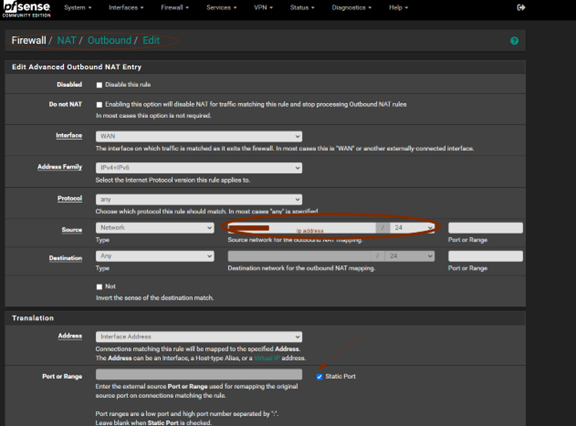
Make sure to apply and save all the settings.
Enabling UPnP Service
The above method should work, but if problems are still present you can try to enable the UPnP service.
Enable UPnP on pfSense by going to Services > UPnP & NAT-PMP. Tick 'Enable' along with 'UPnP Port Mapping' and 'NAT-PMP Port Mapping' and select WAN as the External Interface, and your LAN interface that the Nintendo client is using at the bottom. Click Save to start the UPnP service. This allows Nintendo Switch to open ports dynamically for better connectivity and hosting of games.

Summary
You have effectively fixed the NAT-type problem and improved your Nintendo Switch's connectivity on pfSense by following the procedures mentioned above.
Nintendo has implemented a feature called "NAT Types" on the Nintendo Switch, which can be observed during connection tests. When I originally installed pfSense, my Nintendo NAT Type was D, and I couldn't join games without getting the 2618-0516 Error. When I used this guide, now I got it to B after completing the Static Port in this guide.
Comments NOTHING