



Keeping your Debian system up to date is essential for maintaining security, stability, and long-term support. Debian 12 “Bookworm”, released in June 2023, introduced newer core packages, improved hardware support, and modernized toolchains, making it a solid and recommended upgrade path from Debian 11 “Bullseye.”
🚨 Important: Back Up Before You Upgrade
Before attempting a release upgrade from Debian 11 (Bullseye) to Debian 12 (Bookworm), make sure you:
- Back up all important data — user files, databases, etc.
- Back up system configuration (e.g.,
/etc, firewall rules). - Back up package metadata (including
dpkg --get-selectionsand APT state).
A major release upgrade has strong tooling, but unexpected issues can still occur, especially with custom configs or 3rd-party software.
Must read: Official Debian upgrade notes:
👉 https://www.debian.org/releases/bookworm/amd64/release-notes/ch-upgrading.en.html
🧑💻 Step-by-Step Upgrade Instructions for Debian 11 Bullseye
🔹 1. Confirm Your Current System
Check you are on Debian 11 Bullseye:
#!/bin/bash
cat /etc/os-release #or cat /etc/debian_version or lsb_release -a
#Note down the Linux kernel version too
uname -mrs
Also verify free disk space:
#!/bin/bash
df -h
Tip: Aim for at least 5 GiB free or more on / to accommodate downloaded packages and their installation. If space is low, run:
#!/bin/bash
sudo apt clean
sudo apt autoremove
🔹 2. Fully Update Your Existing Bullseye System
Before adjusting release names, bring all packages to their latest Bullseye versions:
#!/bin/bash
sudo apt update
sudo apt full-upgrade -y
sudo apt autoremove -y
If this installs a new kernel, reboot now:
#!/bin/bash
sudo reboot
🔹 3. Start a Safe tmux Session
Run the upgrade within a tmux session so an SSH disconnect doesn’t interrupt the process:
#!/bin/bash
sudo apt install tmux -y
tmux
If disconnected, re-attach later:
#!/bin/bash
tmux ls
tmux attach # [Number]
🔹 4. Update APT Sources to Debian 12 Bookworm
Edit your APT source lists to point from bullseye to bookworm:
#!/bin/bash
# Debian repo:
sudo sed -i 's/bullseye/bookworm/g' /etc/apt/sources.list
# Add non-free-firmware if the non-free firmware is currently in use:
sudo sed -i '/non-free/ s/$/ non-free-firmware/' /etc/apt/sources.list
# Change all 3rd-party repos (If found):
sudo find /etc/apt/sources.list.d -type f -exec sed -i 's/bullseye/bookworm/g' {} \;
🔹 5. Refresh Package Index
#!/bin/bash
sudo apt update # Ensue no error occurred
If you see GPG key errors, ensure latest keyrings are installed:
#!/bin/bash
sudo apt install debian-archive-keyring debian-keyring
🔹 6. Minimal System Upgrade
Before a full upgrade, perform a minimal one:
#!/bin/bash
sudo apt upgrade --without-new-pkgs -y
This avoids removing/installing packages prematurely and is recommended for minimal down time , great for if the system is provides critical services for your users or the network or full upgrade cannot be run due to space constraints.
🔹 7. Full Distribution Upgrade to Debian 12 Bookworm
Now run the full upgrade:
#!/bin/bash
sudo apt full-upgrade -y
During this, you may be prompted to keep or replace config files — review carefully. Choose the option that makes sense for your custom configurations.
🔹 8. Reboot Into Debian 12 Bookworm
After the process completes:
#!/bin/bash
sudo reboot
Verify the new version:
#!/bin/bash
cat /etc/os-release
You should see Debian 12 Bookworm.
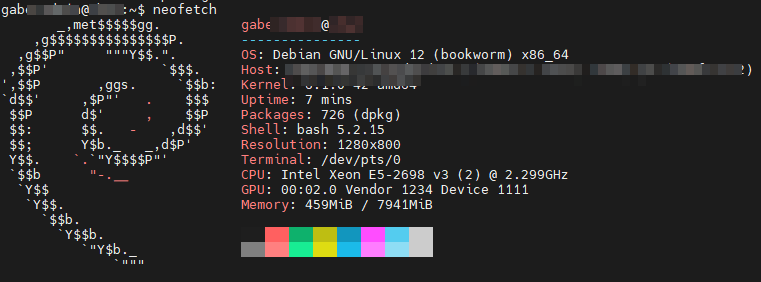
Optional - After rebooting the system, verify that the upgrade completed successfully and that the system is running the expected Debian release. The neofetch command provides a fast overview of your system details, including the current Debian version and some additional information:
🔹 9. Cleanup After Upgrade
Remove obsolete packages:
#!/bin/bash
sudo apt autoremove -y
sudo apt clean
🎯Conclusion
Upgrading from Bullseye to Bookworm is well-supported — but it still requires care:
- Back up thoroughly.
- Use tmux for safety on remote servers.
- Read prompts and make informed decisions about configs.
- Review and clean up outdated packages after upgrading.
Comments NOTHING