



With the official release of Debian 13 “Trixie” on August 9, 2025, the Debian Project has ushered in the next generation of the world’s most stable Linux distribution, bringing refreshed packages, updated desktops, enhanced architecture support, and numerous under-the-hood improvements. At the same time, Debian 12 “Bookworm” — which was first released in June 2023 — is approaching its end of security support from the main Debian Security Team around June 10, 2026 before transitioning into Long Term Support (LTS). This makes planning your upgrade timely and ensure continued access to timely security updates and fixes.
🚨 Important: Back Up Before You Upgrade
Before attempting a release upgrade from Debian 12 (Bookworm) to Debian 13 (Trixie), make sure you:
- Back up all important data — user files, databases, etc.
- Back up system configuration (e.g.,
/etc, firewall rules). - Back up package metadata (including
dpkg --get-selectionsand APT state).
A major release upgrade has strong tooling, but unexpected issues can still occur, especially with custom configs or 3rd-party software. Also read the official Debian upgrading guide here:
👉 https://www.debian.org/releases/trixie/release-notes/upgrading.en.html
🧑💻 Step-by-Step Upgrade Instructions for Debian 12 Bookworm
🔹1. Check Disk Space and Current Version
Ensure you have sufficient free disk space (e.g., 5 GiB or more conservative estimate):
#!/bin/bash
df -h
If needed, run:
#!/bin/bash
sudo apt clean
sudo apt autoremove # remove unused packages
Confirm you are on Debian 12:
#!/bin/bash
cat /etc/os-release #or cat /etc/debian_version or lsb_release -a
#Note down the Linux kernel version too
uname -mrs
🔹2. Ensure Bookworm Is Fully Up-to-Date
Before moving to Trixie, bring your current system fully current:
#!/bin/bash
sudo apt update
sudo apt upgrade -y
sudo apt autoremove -y
If this pulls in a new kernel, reboot now:
#!/bin/bash
sudo reboot
🔹3. Start a Safe tmux Session
Start tmux so the upgrade continues even if your SSH session disconnects:
#!/bin/bash
sudo apt install tmux -y
tmux
Re-attach later if needed:
#!/bin/bash
tmux ls
tmux attach # [Number]
🔹4. Update APT Sources to Trixie
Edit repository references to use trixie instead of bookworm.
Option 1 — Simple find+sed
# Debian repo:
sudo sed -i 's/bookworm/trixie/g' /etc/apt/sources.list
# Change all 3rd-party repos (If found)
sudo find /etc/apt/sources.list.d -type f -exec sed -i 's/bookworm/trixie/g' {} \;
Option 2 — Modernized deb822 format (recommended later)
After the upgrade, convert sources to the new deb822 format:
#!/bin/bash
sudo apt modernize-sources
Debian 13 officially encourages deb822 source files stored under /etc/apt/sources.list.d/ for just one debian.sources file.
🔹5. Refresh Package Lists
#!/bin/bash
sudo apt update # Ensue no error occurred
If you see GPG key errors (rare but possible), install updated keyrings:
#!/bin/bash
sudo apt install debian-archive-keyring debian-keyring
🔹6. Perform a Minimal Upgrade If Needed
A minimal upgrade helps resolve simpler updates without major dependency changes:
#!/bin/bash
sudo apt upgrade --without-new-pkgs -y
This avoids removing/installing packages prematurely and is recommended for minimal down time , great for if the system is provides critical services for your users or the network or full upgrade cannot be run due to space constraints.
🔹7. Full Distribution Upgrade to Debian 13 Trixie
Now complete the release upgrade to Debian 13:
#!/bin/bash
sudo apt full-upgrade -y
During this process:
- If prompted about configuration files, generally keep the current version if you’ve heavily customized them.
- Approve service restarts when prompted.
The full upgrade may install new library versions and remove obsolete packages as needed.
🔹8. Reboot and Verify
After the full upgrade:
#!/bin/bash
sudo reboot
Check the new release:
#!/bin/bash
cat /etc/os-release
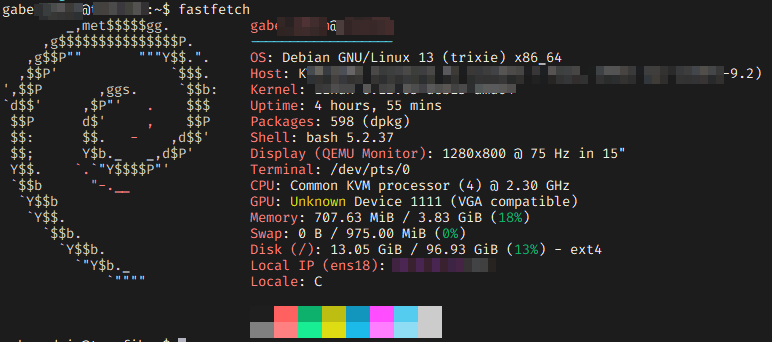
You should see 13 (trixie) in the "VERSION".
Optional - After rebooting the system, verify that the upgrade completed successfully and that the system is running the expected Debian release. Note that neofetch is no longer actively maintained, so it is recommended to use fastfetch instead. And fastfetch was just added in Debian 13 repo, using sudo apt install fastfetch will work.
🔹9. Cleanup
After reboot:
#!/bin/bash
sudo apt autoremove -y
sudo apt autoclean
The release notes recommend removing obsolete or redundant packages since dependency graphs can change in the new release.
🔹10. Modernize APT Sources (Optional)
Debian 13 uses the deb822 sources format by default. To convert your old /etc/apt/sources.list into the new style:
#!/bin/bash
sudo apt modernize-sources
This will generate files like:
/etc/apt/sources.list.d/debian.sources/etc/apt/sources.list.d/debian-backports.sources
The old style file is kept as a backup
🔹11. Clean Up Old /tmp
Debian 13 changes how /tmp is treated — it’s now typically mounted as a tmpfs, meaning its contents do not persist across reboots. Before upgrading, you might have stored temporary or large files there.
To inspect and remove old /tmp contents safely:
#!/bin/bash
sudo mkdir /mnt/tmp-folder
sudo mount --bind / /mnt/tmp-folder
ls -lha /mnt/tmp-chk/tmp/
# Remove temporary files if needed
Remove unwanted files interactively, then:
#!/bin/bash
sudo umount /mnt/tmp-folder
sudo rm -rf /mnt/tmp-folder
Cleaning large leftover files can free space and avoid confusion after the upgrade
🎯Conclusion & New Sources CLI Reference
Upgrading from Bookworm to Trixie is well-supported — but it still requires care:
- Back up thoroughly.
- Use tmux for safety on remote servers.
- Read prompts and make informed decisions about configs.
- Review and clean up outdated packages after upgrading.
APT Internet sources, path is the following in /etc/apt/sources.list.d/debian.sources:
#!/bin/bash
Types: deb
URIs: https://deb.debian.org/debian
Suites: trixie trixie-updates
Components: main non-free-firmware
Signed-By: /usr/share/keyrings/debian-archive-keyring.gpg

Types: deb
URIs: https://security.debian.org/debian-security
Suites: trixie-security
Components: main non-free-firmware
Signed-By: /usr/share/keyrings/debian-archive-keyring.gpg
Comments NOTHING